Transferring claims process
Claims Transfer Administrators.
The Claims Transfer Administrator is the only Organisation profile that can approve Sending or Receiving a Claims Transfer.
How to create the Claims Transfer Administrator Profile
An existing Administrator of the Organisation will need to create a user to have the Claims Transfer Administrator role.
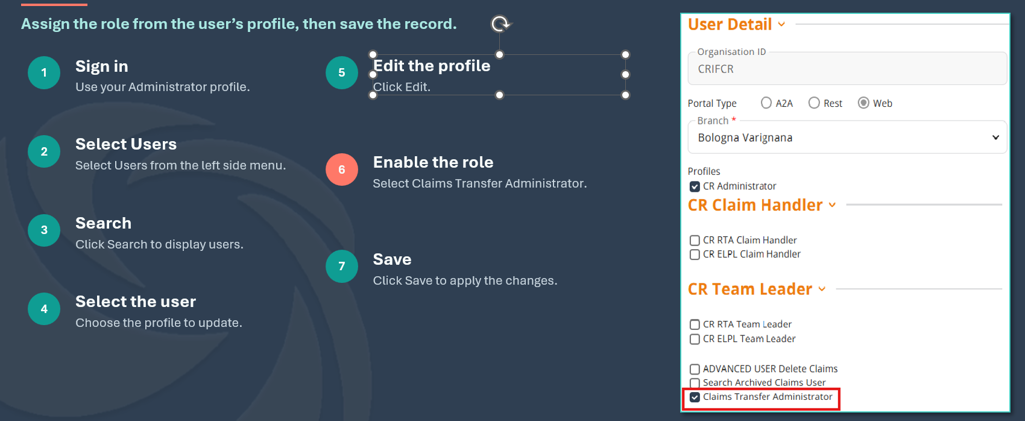
Important: The Claims Transfer Administrator profile cannot be combined with the Handler or Team Leader profiles. this includes the Dispatcher role for Compensators. Claims Transfer Administrators require visibility of all claims, whereas Claim Handler, Team Leader and Dispatcher profiles have restricted claim visibility.
Users who need to perform, Handler Team Leader or Dispatcher duties must switch to the relevant profile when required
We would recommend for the Sending Organisation to start their Claims Transfer request 10 working days in advance of their desired Claims Transfer completion date, due to assessment, testing, approval and scheduling of the Sending and Receiving Organisations involved.
Multiple Claims can be transferred between two organisations of the same type. i.e. one Claimant Representative to another Claimant Representative.
Claims that can be transferred must be in an active claims phase. An active claim is a claim that has been accepted but is yet to be completed or settled.
For a list of active phases, please click on the following link: List of Claims Portal Active/Not Active Phases
Claim types that cannot be transferred
- Claims that are in archive.
- Claims that have been allocated to a specific user, unless specified and the claim ID is provided within the transfer request.
- Draft CNFs.
Important: All standard rules will apply to CNFs transferred. Timeouts will continue to advance, uninterrupted, in line with the Pre-action Protocol and transferred claims will follow the standard visibility rules. The organisation that will be receiving the transferred claims must be prepared to receive and manage the claims, including those about to timeout.
There are three transfer options for you to choose from depending on your organisations requirements and volumes of claims to be transferred.
Option 1. All active claims
The Sender requests the transfer of all active claims from one organisation to another.
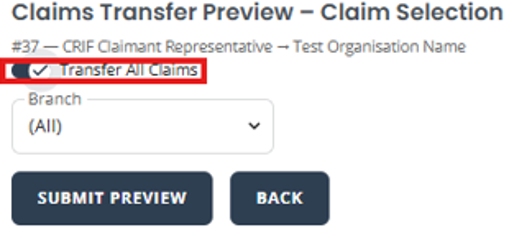
A Claims Transfer Preview Report will be provided, listing all claim IDs that will be included in the transfer. The transfer will only proceed once authorisation has been received from the Sender and confirmation has been provided by the Receiver organisation.
Option 2. Branch Transfer
This transfer type is used to transfer all active claims from a specified branch.
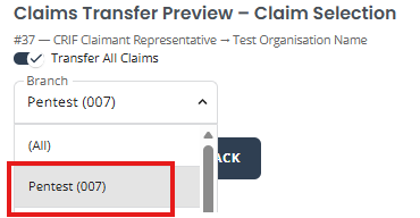
If claims need to be transferred from more than one branch, a separate Claim Transfer request must be submitted for each branch.
A Claims Transfer Preview Report will be provided, listing all claim IDs that will be included in the transfer. The transfer will only proceed once authorisation has been received from the Sender and confirmation has been provided by the Receiver organisation.
Option 3. Specific Selected Claims
This transfer type allows the Sender to transfer a selected list of claims.
Use the Search Criteria to find the Claims you wish to transfer. There are many fields where you can Search for claims to transfer. This search should mainly be used when you wish to transfer a low number of claims.
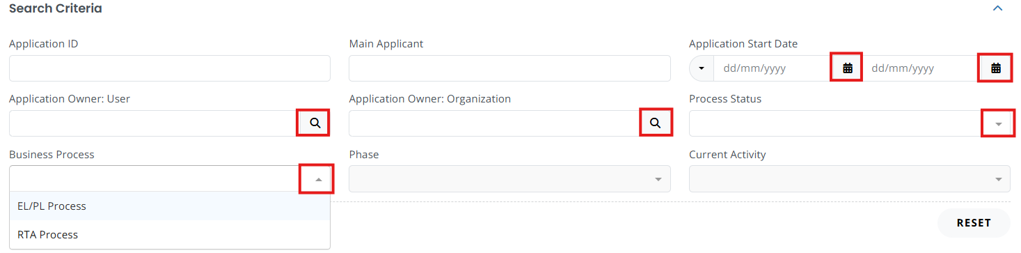
If you wish to transfer a high number of claims it is advised to search using the more advanced search function which will populate once you click SEARCH
The Sender can use the secondary filter options to identify the required claims and create the list of claim IDs to be included in the transfer. The Secondary filters allow you to search across multiple headings within a claim. For each heading you can choose a filter condition from the drop down list. These filters can be used to refine your search and locate the claims you wish to select and transfer


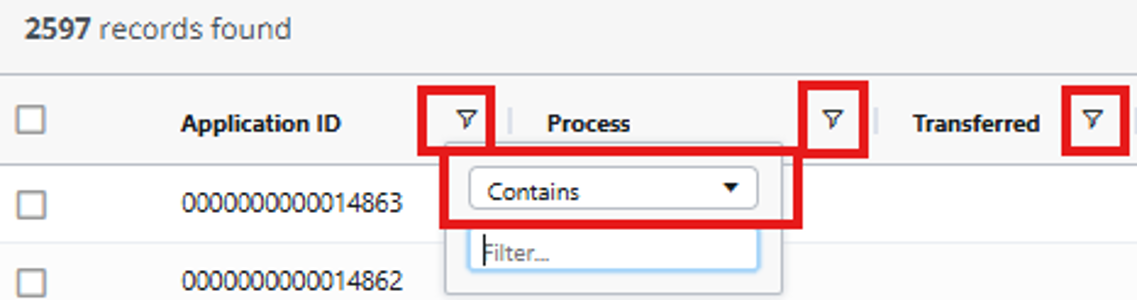
A Claims Transfer Preview Report will be provided, listing all the claim IDs in the active claims phase that will be included in the transfer. The transfer will only proceed once authorisation has been received from the Sender and confirmation has been provided by the Receiver organisation.
Please ensure that accurate details are provided for all claims required to be transferred. In the event that incorrect information is provided, processing of the transfer will be delayed and additional work will be involved.
How you view transferred claims in your account will depend on whether you are a web or REST API user.
WEB
- All web users will be able to see and work with transferred claims as they usually would.
REST API
- If either the source or destination organisations are REST API users you need to ensure that transferred claims are managed and available to your users via your Case Management System (CMS). It is possible that your CMS may need to be changed to ensure it correctly handles transferred claims: please contact your REST API service supplier or IT department for advice.
- How REST API users will be able to see and work with transferred claims will depend on how the organisation or software provider has implemented the Claims Transfer capability into their own application to access claims or Claims Management System.
- An organisation's own REST API Developer will need to assess these requirements.
The Sender Organisation sets up and schedules the Claims transfer; both the Sending and Receiving organisations approve the Transfer of claim before Claims Portal completes the Claims Transfer
The step by step guide is below. The User Guide can be found here
- Sender: start a new transfer, use the search functions to finds the receiving organisation, check its details and submits.
- Receiver: verifies the Claims Transfer request from the Sender, chooses the destination branch and user ID, then approves —or reject if incorrect.
- Sender: chooses the claims to transfer. The Sender will have to options of choosing all claims, one branch or filtered claims, then submits the selection to Claims Portal to create a Claims Transfer Review Report
- Claims Portal: generates the Claims Transfer Preview report and notifies the Sending Organisations when the Claims Transfer Preview report is ready to review
- Sender: Downloads the Claims Transfer Preview Report and checks the claim list. Approves the report which then notifies the Receiving Organisations to also check the Claims Transfer Preview Report; or reject the report to cancels the transfer.
- Receiver: Downloads and check the Claims Transfer Preview Report and checks the claim list. Accepts the report, which will notify the Sender Organisation, or reject the report to cancel the transfer.
- Sender: schedules the Claims Transfer (when both approvals are complete).
- Claims Portal: Will run the transfer overnight. The Sender can monitor the status of the report and if needed can cancel the Claims Transfer until the Status reaches “Claims Transfer Running”
Important: The Claims Transfer Preview report reflects the status of the claims at the time the report was generated, any delay in the agreement to proceed with the Claims Transfer may result in some claims timing out or exiting the Portal. Once a claim is inactive; action cannot be taken on the claim and the claim can no longer be transferred.
Web Users
The receiving Organisation can Search for the transferred claim's using the search function on the left-hand side navigation bar and then using the search fields.
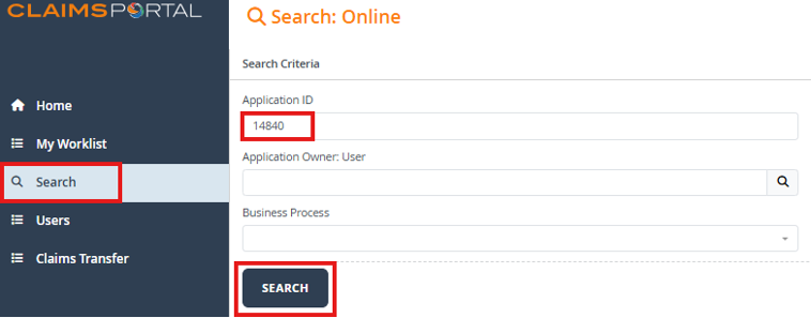

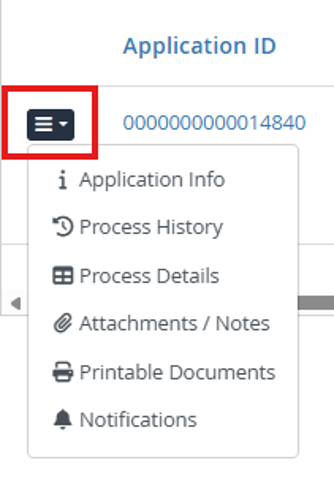
The exact date and time the claim transfer took place can be viewed by clicking the View Process History icon in the Worklist.
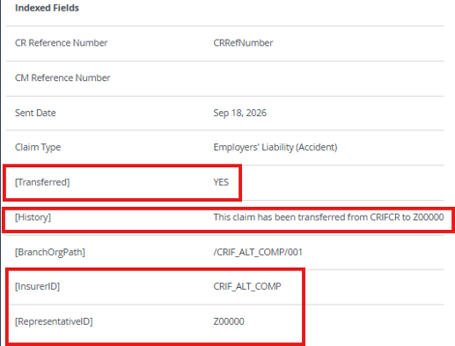
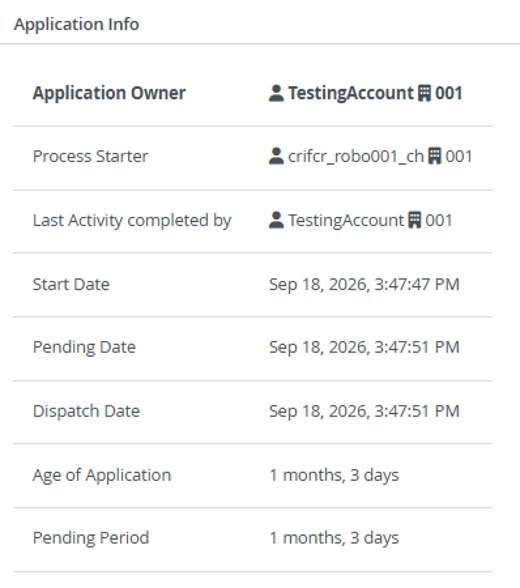
Users that have an REST API solution should follow the REST API Specifications which details the call they need to make to obtain notifications of the transferred claims. Each notification will contain the message “The Claim 0000000000001 has been successfully transferred from “Source Organisation” to “Destination Organisation”.
Please note that the original source will always remain as the creator of the claim.
We are pleased to announce that the new Claims Transfer capability will go live in the Claims Portal on 28th October 2026.
This enhancement has been developed in response to user feedback and will simplify the claims transfer process by enabling organisations to manage transfers directly within the Claims Portal.
What's Changing?
The new functionality will:
- Allow organisations to initiate and manage claims transfers directly through the Claims Portal’s web Portal.
- Give users the ability to transfer claims between organisations, either from one Claimant Representative to another Claimant Representative or from one Compensator to another Compensator.
- Claims can be transferred regardless of volume, with no minimum threshold.
- Introduce a new Claims Transfer Administrator user role with permissions to manage the process.
- Provide greater visibility of transfer progress through a dedicated online interface.
- Enable organisations to review and approve claims transfers before proceeding.
- Provide email notifications throughout the transfer process.
- Reduce the number of process steps, making bulk transfers quicker and easier to manage.
User Guidance
To support your preparation for the new Claims Transfer functionality:
Claimant Representative User Guide
We encourage all users involved in claims transfers to review the user guide and familiarise themselves with the new process.
If you have any questions or require support, please contact the Claims Portal Team at ClaimsPortal@mib.org.uk
