This guide explains the steps Claimant Representatives need to take to ensure that claims which have reached settlement are concluded within the Claims Portal.
Reaching agreement with the Compensator does not necessarily mean that the claim has automatically reached the end of the Portal process. In certain circumstances, the Claimant Representative must access the claim and acknowledge the settlement by selecting Continue.
When settlement has been agreed
Where the Compensator agrees the Stage 2 Settlement Pack, the claim moves into the application status:
Stage 2 Settlement Pack Confirmation
The Claimant Representative must:
-
Access the claim from their Worklist.
-
Open the claim in Stage 2 Settlement Pack Confirmation.
-
Review the settlement confirmation.
-
Select Continue to acknowledge the outcome.
For adult claimants, this action brings the claim to an end in the Portal.
What happens if the Claimant Representative does not acknowledge the settlement
The Claims Portal Data Retention Policy explains that certain end-of-process statuses are automatically acknowledged after 30 calendar days.
However, Claimant Representatives should not rely on automatic acknowledgement. They should complete the required action by selecting Continue when the claim is returned for confirmation.
Please review the full Data Retention Policy here.
Important exception – child claimants
Where the claimant was under 18 at the time of the agreement, the claim does not simply end following settlement confirmation.
The claim continues to the Court Proceedings Pack process. For RTA claims, the option to submit additional damages may also be available.
Saving and retaining claim documentation
Before considering the claim concluded, ensure that the relevant settlement documentation have been downloaded and saved.
We advise users:
-
The Portal is not a case management system.
-
Organisations must maintain their own audit trails.
-
Printable documentation should be saved or printed at every stage.
Checking the status of a claim
Claimant Representatives can use the Search function within the Portal to check the application status.
To check a claim:
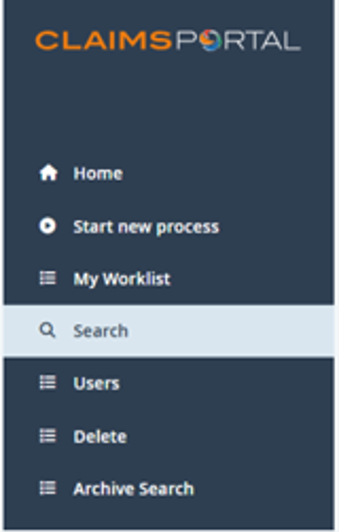
1. Select Search from the menu bar
2. Enter the Application ID. Clear the Application Start Date ‘From’ field
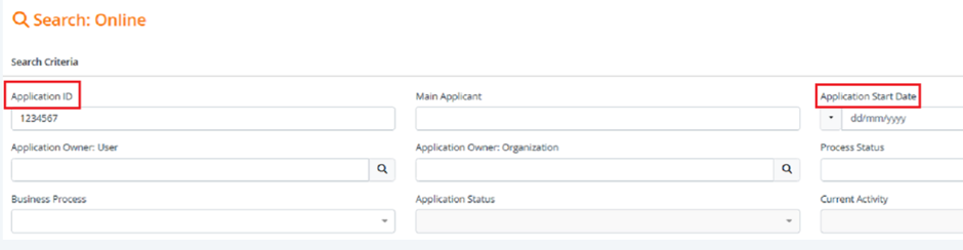
3. Select search
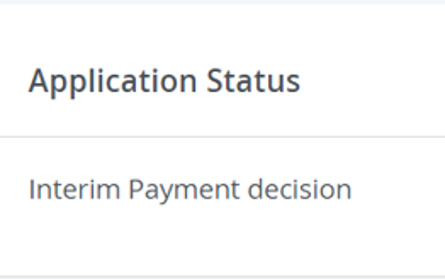
4. Review the application status displayed in the search results.
What happens after a claim is concluded
The Claims Portal Data Retention Policy states that settled claims are deleted after 30 calendar days.
This includes claims reaching:
-
Stage2SettlementPackConfirmationEnd
-
Stage2SettlementPackAgreedEnd
-
Stage2SettlementPackAllDamagesAgreedEnd
Key reminder
Once settlement has been agreed, Claimant Representatives should ensure that the required confirmation action is completed within the Portal, the claim reaches the appropriate end-of-process status, and all relevant documentation is retained on their own case management system.
