This guide explains how Claimant Representatives can take a claim out of the Claims Portal.
There may be circumstances where a claim can no longer continue through the Portal process, or where the Claimant Representative needs to remove the claim for a specific reason.
This guide explains:
- When a Claimant Representative can exit a claim.
- The reasons available for exiting a claim.
- How to use the Exit Process function.
- What happens after an exit request is submitted.
- Important requirements to consider before removing a claim.
When can a Claimant Representative exit a claim
A Claimant Representative can use the Exit Process function where one of the permitted exit reasons applies.
The reasons identified in the Claims Portal include:
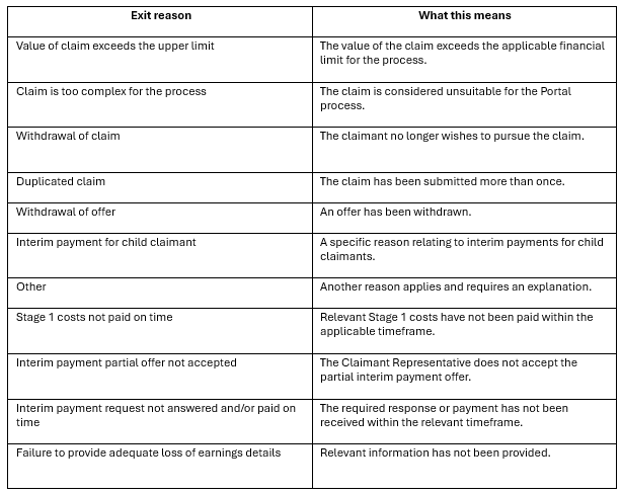
Important: Available exit reasons and restrictions vary by claim type and process. Some reasons are only available at specific stages. Always check the applicable Portal options and Protocol.
How to use the Exit Process function
The Claims Portal provides an Exit Process button for Claimant Representatives.
Step 1 – Locate the claim
Log in to the Claims Portal and locate the relevant claim in your Worklist.
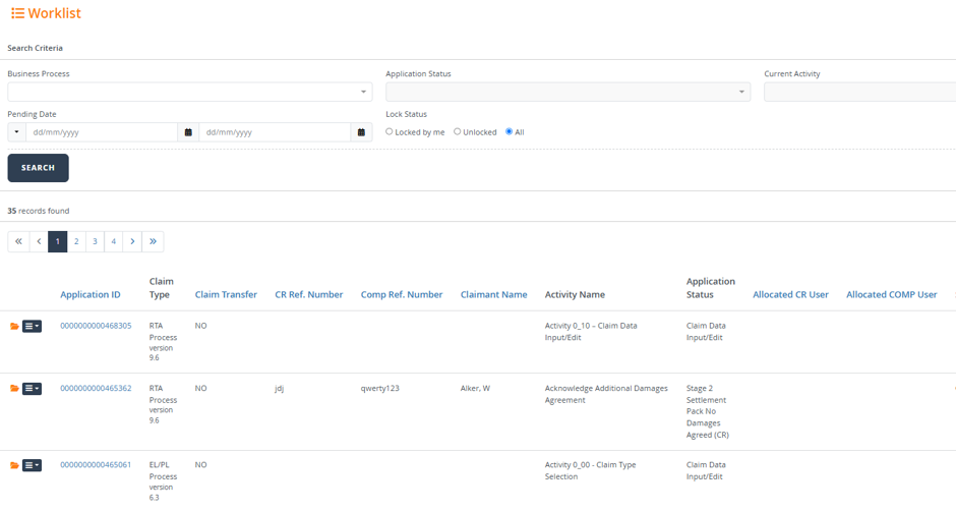
Open the claim you wish to remove from the process.
Step 2 – Select Exit Process
Once you have opened the claim, select open activity, follow the steps illustrated below to begin the process of taking the claim out of the Portal.
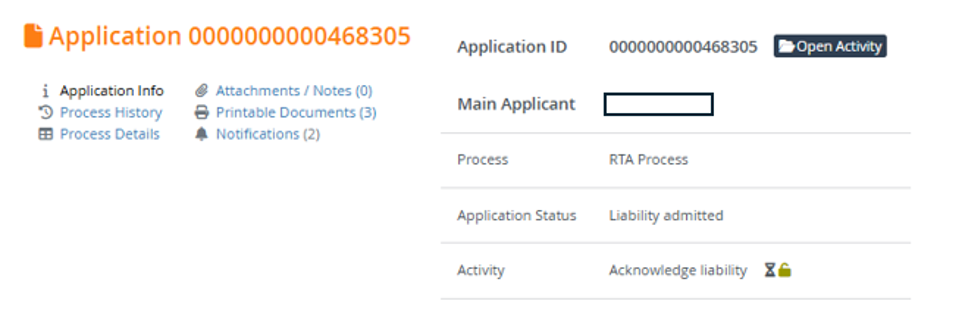
Scroll all the way to the bottom on the claim, select continue.

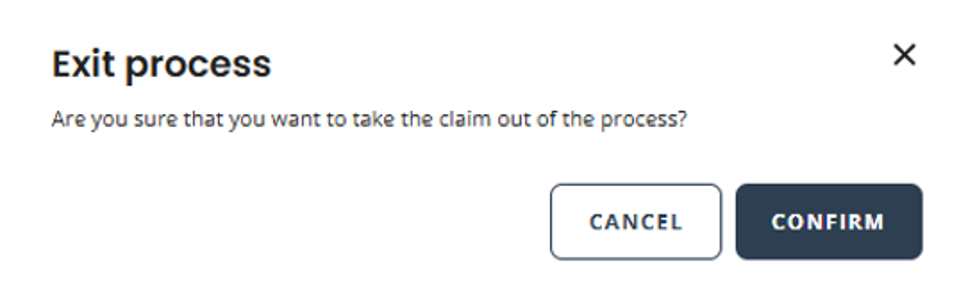
The next page will appear, and the Exit button will now be visible to select.
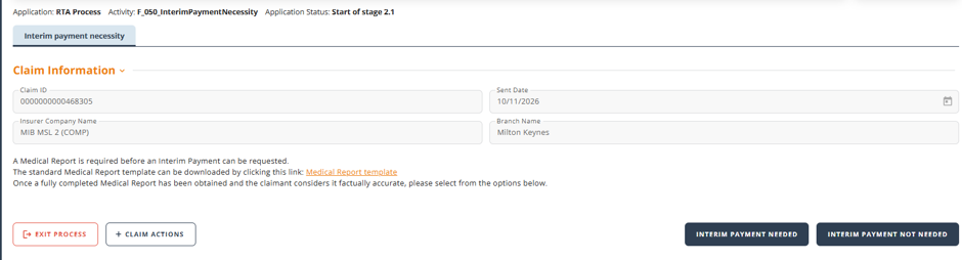
Step 3 – Select the reason for exiting
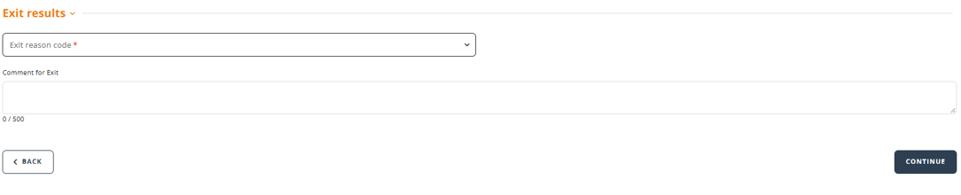
You will be asked to select an appropriate reason code from a drop-down list.
Choose the reason that best explains why the claim is being removed from the process.
Step 4 – Add a comment
You must add a comment explaining the reason for taking the claim out of the process.
Make sure the comment clearly explains the circumstances behind the exit.
Step 5 – Confirm the exit request
Once you have selected the reason and added your comment, confirm the request.
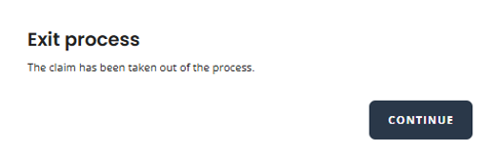
The exit request will be sent to the Compensator for acknowledgement.
Show the final confirmation screen or message displayed after submitting the exit request.
What happens after the exit request is submitted
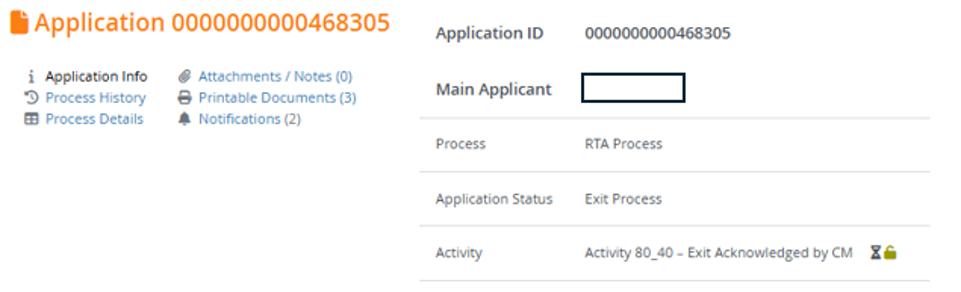
Once the Claimant Representative submits an Exit Process request:
- The request is sent to the Compensator.
- The Compensator must acknowledge the Exit Process.
- Once acknowledged, the claim will end in the Portal.
No further actions can be performed on the claim once it has been exited.
Important information before exiting a claim
Before using the Exit Process function, Claimant Representatives should consider the following:
Correct exit reason
Ensure the correct reason code is selected and that the comment accurately explains why the claim is being removed.
Applicable Protocol
Check the relevant Protocol and applicable claim type requirements before proceeding.
Stage of the claim
Some exit reasons are only available at particular stages of the claims process. The Portal will restrict the available options accordingly.
Exiting a claim is different from a timeout
It is important to understand the difference between a Claimant Representative actively removing a claim and a claim reaching the end of the Portal process because of a timeout.
Claimant Representative-initiated exit
The Claimant Representative actively selects Exit Process, chooses a reason and submits the request to the Compensator for acknowledgement.
Timeout or automatic end of process
A claim may also reach the end of the Portal process when a response or decision is not received within the applicable timeframe, or when a particular decision means the claim can no longer continue through the Portal.
These are separate processes and do not necessarily require the Claimant Representative to use the Exit Process function.
Further information
For additional information, please refer to further Claims Portal guidance:
Worklist Buttons / Icons Explained – Claimant Representative:
